The Gap Nobody Tells You About
Your iPhone does look for unknown Bluetooth trackers. Since iOS 17.5 it warns you about third-party tags too, not just AirTags — Tile, Chipolo and Samsung SmartTag included — because Apple and Google built a shared industry specification called Detecting Unwanted Location Trackers for exactly this purpose.
So the protection exists. The problem is when it arrives.
Those alerts are passive. iOS decides on its own that something has been travelling with you long enough to be suspicious, and only then does it speak up. There is no button anywhere in Settings that means "check this room right now". The Electronic Frontier Foundation puts it plainly in its guide to detecting Bluetooth trackers: you cannot manually search for trackers from an iPhone without installing a separate app.
That is the gap. The system answers a question you asked yesterday, not the one you have right now.
How Long "Eventually" Actually Takes
Apple does not publish an exact figure, and the honest answer is that it varies with how much you move and how consistently the tracker stays near you. But court filings give us a sense of scale. In the wave of product liability lawsuits filed against Apple in 2026 and reported by MacRumors, plaintiffs point to a delay of roughly four to eight hours before a notification appears. The same filings note that when AirTags launched, the wait was 72 hours.
Those documents also state that Apple received more than 40,000 unwanted tracking reports between April 2021 and April 2024.
Four hours is a reasonable design trade-off if the goal is avoiding false alarms. It is a long time if you have just walked out of a difficult conversation and want to know whether something is in your bag before you drive home.
Android Has the Button. iOS Doesn't.
This is not a limitation of Bluetooth or of phones in general. On Android the manual scan is a built-in feature: Settings, then Safety & Emergency, then Unknown tracker alerts, and you can trigger a sweep yourself.
iPhone users have no equivalent. That is the entire reason a third-party scanner exists on iOS.
First: Make Sure the Passive Alerts Even Work
Before adding anything, confirm the built-in protection is actually switched on. Apple's personal safety guide lists the requirements, and any one of them being off silently disables the whole thing:
- Location Services enabled, in Settings > Privacy & Security > Location Services
- Find My iPhone enabled, under System Services in the same screen
- Bluetooth on
- Tracking Notifications allowed, in Settings > Notifications
- Airplane Mode off — no notifications arrive while it is on
Worth checking now rather than discovering later that alerts were never going to come.
Running a Scan Yourself
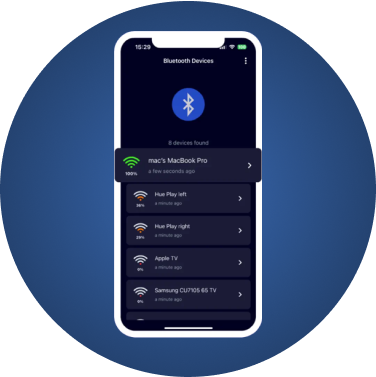
This is what FindMyGear is for. It does not wait for a pattern to emerge over hours; it lists what is broadcasting around you at this moment and how strong each signal is.
Step 1: Reduce the noise
Turn off or move away from your own Bluetooth devices — earbuds, watch, car stereo, speakers. Every one you eliminate is one less thing to rule out later. In a car, close the doors and windows to limit signals from the street.
Step 2: Scan and read the list
Open the app and start a scan. You will see named devices and unnamed ones. Unnamed is not automatically sinister — plenty of ordinary electronics broadcast without a friendly label, and our guide to unknown Bluetooth devices explains what usually turns out to be what.
What deserves attention:
- a device with no name showing a strong signal when nothing obvious is nearby
- a tracker-class device you do not own
- the same unfamiliar device appearing in several different places you have been
Step 3: Follow the signal strength
Signal strength, or RSSI, is your distance gauge. Walk slowly and watch the number climb as you close in, then fall as you overshoot — the hot-and-cold method. It is imprecise by nature, since walls, bodies and battery level all distort it, which is why understanding how RSSI behaves makes the search much faster in practice.
Step 4: Search the physical space
Once the signal peaks, start looking. In a vehicle: wheel arches, under bumpers, the spare wheel well, seat pockets, under seats, the glovebox. In a bag: lining seams, inner pockets, anything zipped that you did not zip.
For a complete vehicle checklist, including the kinds of tracking a scan cannot see, read how to check your car for a hidden tracker.
The Limits — Stated Plainly
A Bluetooth scanner reads Bluetooth. That defines what it can and cannot do, and it is better to know the boundaries before you rely on it:
- A tracker must be broadcasting. One with a dead battery, or shielded inside metal, will not appear.
- Wired GPS trackers are invisible to it. Hardwired vehicle trackers do not use Bluetooth at all.
- Cameras only count if they use Bluetooth. Wi-Fi-only cameras and offline ones recording to an SD card produce no Bluetooth signal — see our hidden camera guide for the additional methods those require.
- Range is tens of metres, not kilometres. RSSI helps you find something in the room you are standing in. It cannot locate a bag already on a plane; that needs a crowdsourced network, which is a different tool for a different problem, as we cover in Find My versus third-party apps.
- Ownership stays hidden. Trackers broadcast rotating encrypted identifiers. No app can tell you who put one there.
A manual scan closes the timing gap. It does not replace the built-in alerts, and it is not a guarantee.
If You Find Something
Slow down here, because the instinct to grab it and throw it away can make things worse.
- Leave it in place for now. It may be evidence, and removing it tells whoever placed it that you know.
- Photograph it where it sits, along with the surrounding area.
- Consider your safety first. If you believe someone dangerous is tracking you, contact local law enforcement before you touch anything. Apple's guidance is the same: for an Apple device, police can request information tied to its serial number. If a partner or ex may be involved, a domestic violence advocate can help you plan the next step safely.
- Disable it only when it is safe to do so — and understand that doing so is visible to the owner.
Each of these steps, including how to read an AirTag's serial number without opening it, is covered in what to do in the first hour after finding a tracker.
This article is general information, not legal advice. Rules on tracking devices, recording and surveillance vary by country and by state, so check your local law or speak to a lawyer for your specific situation.
The Practical Takeaway
Keep the built-in alerts switched on; they cover the slow case where a tracker follows you for a day. Add a manual scanner for the fast case, when the question is about right now and waiting four hours is not an option.
If you want the background on how these tags work before you go looking for one, start with detecting hidden AirTag trackers and protecting yourself from AirTag stalking.
Download FindMyGear and you will have a scan button when you need it — which is usually the moment you cannot wait.